
Dates in Excel – the subject of many an internet meme. There’s a common perception that Excel is baffling when it comes to dates.
And this is actually a bit unfair, because it’s got quite a bit better in the last few years at not randomly inserting dates everywhere.
So I thought it would be useful to set out a few principles of how they behave and why. I am using UK date formats in this post.
Dates in Excel are just numbers
Fundamentally the most important thing to know is that dates in Excel are just numbers, but formatted as a date. Specifically, 01/01/1900 is number 1 and all dates in Excel are represented by a serial number which is the number of days after this date.
So 31/01/1900 is 31, 28/02/1900 is 32, etc.
Time is just a fraction of a day, but let’s not go there right now.
You can do maths with dates
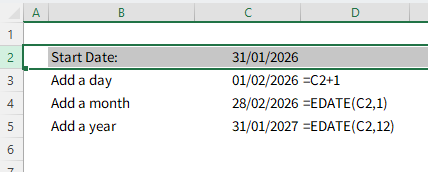
Because dates are numbers, you can do maths with them.
To add (or subtract) a day – this is really easy, as you just add (or subtract) 1. If you want to add a week, add 7.
If you want to add (or subtract) a month, this is best done with the EDATE formula, as this will take you to the same day the following month, and is clever enough to adapt for different lengths of months. I probably have more use for EOMONTH, which takes you to the month end of the following month instead.
To add (or subtract) a year, you should still use EDATE (or EOMONTH), but with 12 as the second argument.
It’s important to note that maths with dates in Excel only works for dates that are 01/01/1900 or later. You can’t do maths with earlier dates, because Excel doesn’t recognise them as a number.
Interestingly, this is not the same in Googlesheets. It can handle negative numbers as dates. So you can subtract 3 from this date and get 28/12/1899. However, like Excel, you can’t use EDATE or EOMONTH with earlier dates. Also, fun fact: Googlesheets starts its count at 31/12/1899. This is to compensate for an error in Microsoft’s calculation, which assumes that 1900 is a leap year and that 29/02/1900 is a date. So Googlesheets and Excel have different date serial numbers up to 1st March 1900 and then they align.
Entering dates in Excel
How you enter a date into a spreadsheet depends on your regional settings. For example, with my UK regional settings, if I type 24/03/26 or 24/03/2026 or even 24/03, Excel will recognise this as a date. By which I mean that it will convert my typing into the underlying serial number (46,105) and then display this as a date. You can tell it’s done this because it aligns the data to the right.
However, if I typed 24.03.26 or 24.03.2026, it does not recognise it as a date. You can tell because it remains aligned left, which is the default alignment for text.
But it’s important to note that your experience may vary depending on your regional settings. If I type 03/24/26 it won’t recognise this as a date because it’s a US format and I’ve got UK regional settings.
Troubleshooting date issues in Excel
Whenever you have an issue with Excel not recognising a date as a date, you first need to understand how Excel is looking at what you’ve entered.
If Excel is reading your input as text, then you won’t be able to do date maths or formulas on it until you’ve converted it to a number.
If Excel is reading your input as a number, then it’s just a formatting issue. Go to the number section in the Home tab to change this to a date, or use Ctrl+1 to bring up the formatting menu.
There are various tells if you’re not sure what’s going on. You could try to reference the cell in a formula and add 1 – if you get a #VALUE error, then Excel is reading the original cell as text.
How to convert text to date (number)
If you’ve got a series of “dates” that are showing as 24.03.26 then there are a few options to fix this.
Firstly, Power Query is better than Excel at doing this if you don’t want to get into formulas, because it recognises a wider range of potential date inputs as dates.
You could also fix with the DATE formula which is a way of turning text into dates. The DATE formula asks you to enter the year, month and day numbers and converts into a date.
Depending on how your original data has been laid out, you can combine this with something like TEXTBEFORE/TEXTAFTER or LEFT/RIGHT/MID to convert the textstring into a date.
For example, if 24.03.26 has been entered into cell A1, you could use this:
=DATE(TEXTAFTER(A1,”.”,2)+100,TEXTAFTER(A1,”.”),TEXTBEFORE(A1,”.”))
There are various other tricks including using the Text to Columns command but these aren’t repeatable / dynamic so I don’t tend to use them as much. DATEVALUE occasionally works but is a bit hit and miss.
If you want a quarterly newsletter summarising latest developments in Excel and other things I've found interesting or useful, please sign up here. I won't use your data for anything else.