
The Accessibility checker in Excel is a brilliant tool. Everyone who regularly works in Excel should use it – even if you don’t think you have any users with accessibility needs.
(It’s also present in other Microsoft programmes.)
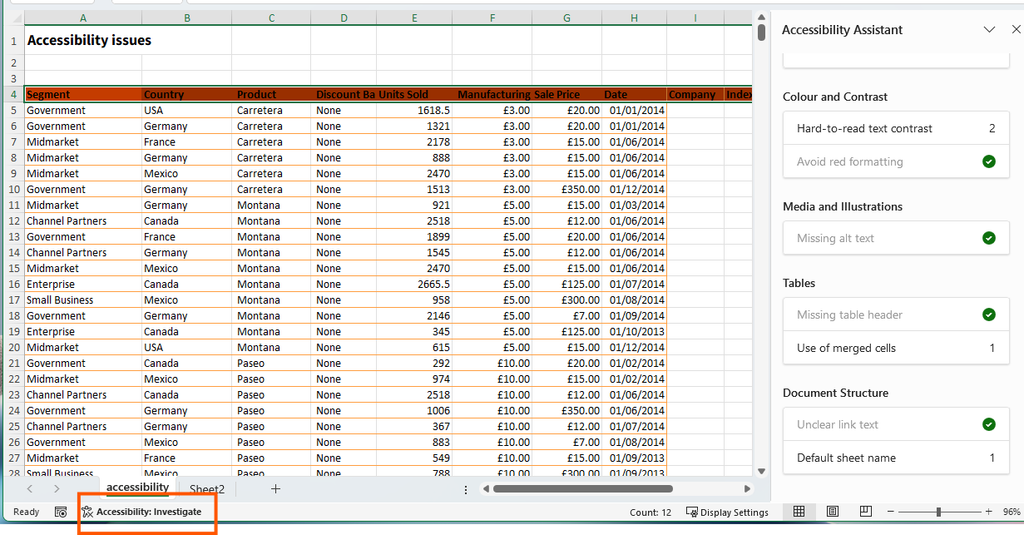
You can find it either by looking at the bottom left of your spreadsheet – this bit is called the Status Bar, by the way.
Or you can find it on the Review ribbon – the “Check accessibility” option.
When you launch it, the “Accessibility Assistant” pane pops up on the right. You can keep it there as long as you want.
What does the Accessibility checker do?
The Accessibility checker in Excel inspects your workbook for issues that might cause problems from an accessibility perspective.
For example, it highlights examples where there isn’t enough colour contrast between font colour and background colour.
It checks that sheets have titles (if they have data in them). And my particular favourite – it highlights any examples of merged cells. Merged cells are generally considered to be bad practice in Excel as they mess up all sorts of things – data structure, pivot tables, and shortcuts for example. They’re also bad for screen readers.
My only beef with the checker is that it highlights examples of where I’ve used red formatting for negative numbers. This is an issue if that’s the only way to tell a number is negative. However, to counteract this, I always combine this with using brackets (parentheses).
The Accessibility checker doesn’t just flag potential issues. You can use it to jump straight to the problem, and it will also suggest a solution.
For example, where there is inadequate colour contrast, it will suggest a couple of specific options as well as giving you a shortcut to the font colour selector. Or for the dreaded merge cells, you can unmerge them with a click of a button within the Accessibility Assistant.
It’s such a great interface and really useful too. If you’re not already using it, give it a go – it’s actually quite addictive!
If you want a quarterly newsletter summarising latest developments in Excel and other things I've found interesting or useful, please sign up here. I won't use your data for anything else.
One Reply to “Using the Accessibility checker in Excel”