

I always change these three Excel default settings when I’m setting up a new machine or profile.
(1) Allow Leading Zeros
Excel defaults to removing leading zeros. That is, if you type 078456 it becomes 78456.
If you want to keep any leading zeros, you have to type ‘078456. This tells Excel to treat your input as text.
You can (and probably should) change this setting. You can find this in File => Options => Data. Under “Automatic Data conversion”, deselect the first box (“Remove Leading Zeros and convert to a number”). See image below:
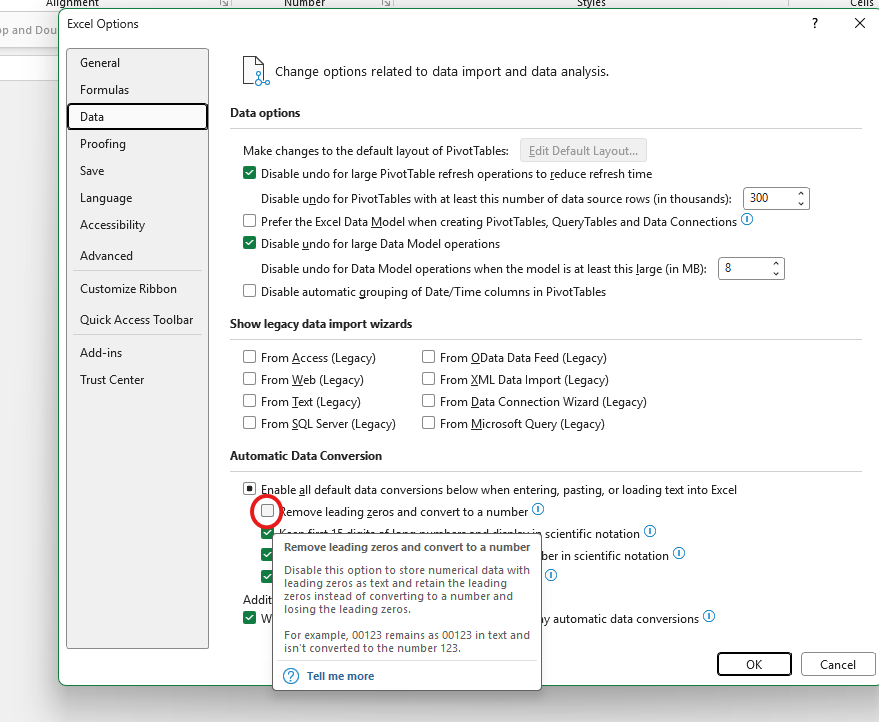
This isn’t just a techy change. There are lots of occasions where finance people might want to show zeros as part of a number.
For example, think about bank account and sort codes.
If you’re importing a payment file to or from a CSV file, you need the full string of digits.
Many accounting systems also have account codes that start with zeros. For this reason I often have account codes set to text when I’m building accounts models.
(2) Pivot Table Formatting
There are lots of settings for changing how your pivot tables look. If you have a particular look you prefer, you can change your defaults.
In the same File=>Options=>Data window pictured above, you have the option to “Make changes to the default layout of pivot tables”.
My particular changes are to switch to Tabular layout, and in the further options bit I untick “Autofit column widths on update”. But there are loads of other options you can change as well.
(3) Move the Quick Access Toolbar to below the Ribbon
The Quick Access Toolbar is a feature of most Microsoft products. In Excel, the default items are not massively helpful to me – I use keyboard shortcuts for Save, Undo and Redo.
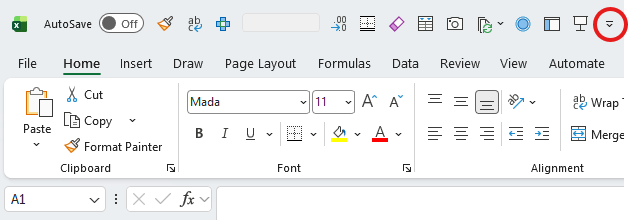
The location of the QAT is also not helpful to me, as you have to be able to recognise icons to use it effectively. So instead, I move it to under the Ribbon. Here is the before picture – I’ve highlighted with a red circle the button you need.
And here is the after picture:
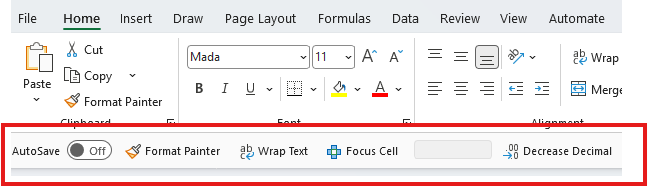
Much easier to read!
Other ways to customise your Excel experience
There are tonnes of other ways you can customise your experience. For example, I wrote a blog post here about using Cell Styles. You can set up Templates and default Table styles too. However, these are all specific to workbooks, whereas the three Excel default settings I’ve highlighted above apply to your machine or profile.
If you want a quarterly newsletter summarising latest developments in Excel and other things I've found interesting or useful, please sign up here. I won't use your data for anything else.